
How to check Facebook privacy settings and delete account items
If you want to get an idea of what Facebook knows about you, there’s a few things you can do.
Based on information you provide to Facebook and your activity on the platform, it knows your political affiliation, the type of mobile device you use, your preferred web browser, your personal interests and what ads you’ve interacted with on the platform. Facebook then uses that information to show ads to users based on the audience the advertiser would like to reach.
On desktop
You can check this by going to your Facebook account’s “Settings,” Click on the down arrow in the upper right hand corner of the page. Once the “General Account Settings” page loads, click on “Ads."
You’ll be directed to a page with six options "Your interests," "Advertisers you've interacted with," "Your information," "Ad settings," "Hide ad topics" and "How Facebook ads work."
The “Your interests” section is a collection of topics (brands, events, celebrities, artists, destinations, etc.) that Facebook thinks you’re interested in. If you click on one of the topics, Facebook will show you an example of an ad it might show people with that specific interest.
If you don’t want to get an ad related to a certain category or interest, you can delete it by hovering over it and clicking the “X.”
Under “Your information” you can see the profile information you’ve provided to Facebook, like your relationship status, employer, education, etc in the “About you” subsection.
In “Your categories” subsection under “Your Information,” you can see how Facebook has categorized you based on your political affiliation, if you have a “multicultural affinity” (this means you may be interested in ads related to African Americans, Hispanic Americans, or Asian Americans), the type of mobile device you use, your preferred web browser, among other things.
You can also see what ads you’ve interacted with on the platform and what Facebook thinks you’re interested in under the “Advertisers you’ve interacted with” section.
You can get a history of your activity on Facebook (what you’ve liked, apps you’ve used, anything you’ve searched for) by reviewing your “activity log” accessible from your timeline or by clicking on the upside down arrow at in the top right corner (next to the question mark) and click on “Activity Log.”
You can also download your Facebook data, which will tell you the ads you’ve clicked on, messages you’ve sent and received on Facebook, the IP addresses you’ve used to log in to Facebook, and all the other information already on your timeline (posts, posts you’ve shared, photos, etc.). To download your Facebook data, click on the upside down arrow, then “Settings,” then “Download a copy of your Facebook data” found at the bottom of “General Account Settings.”
On iPhone
You can check what Facebook knows about you by tapping on the three horizontal lines at the bottom right of the app (sometimes called the “hamburger” menu), then tapping on “Account Settings,” then “Ads.”
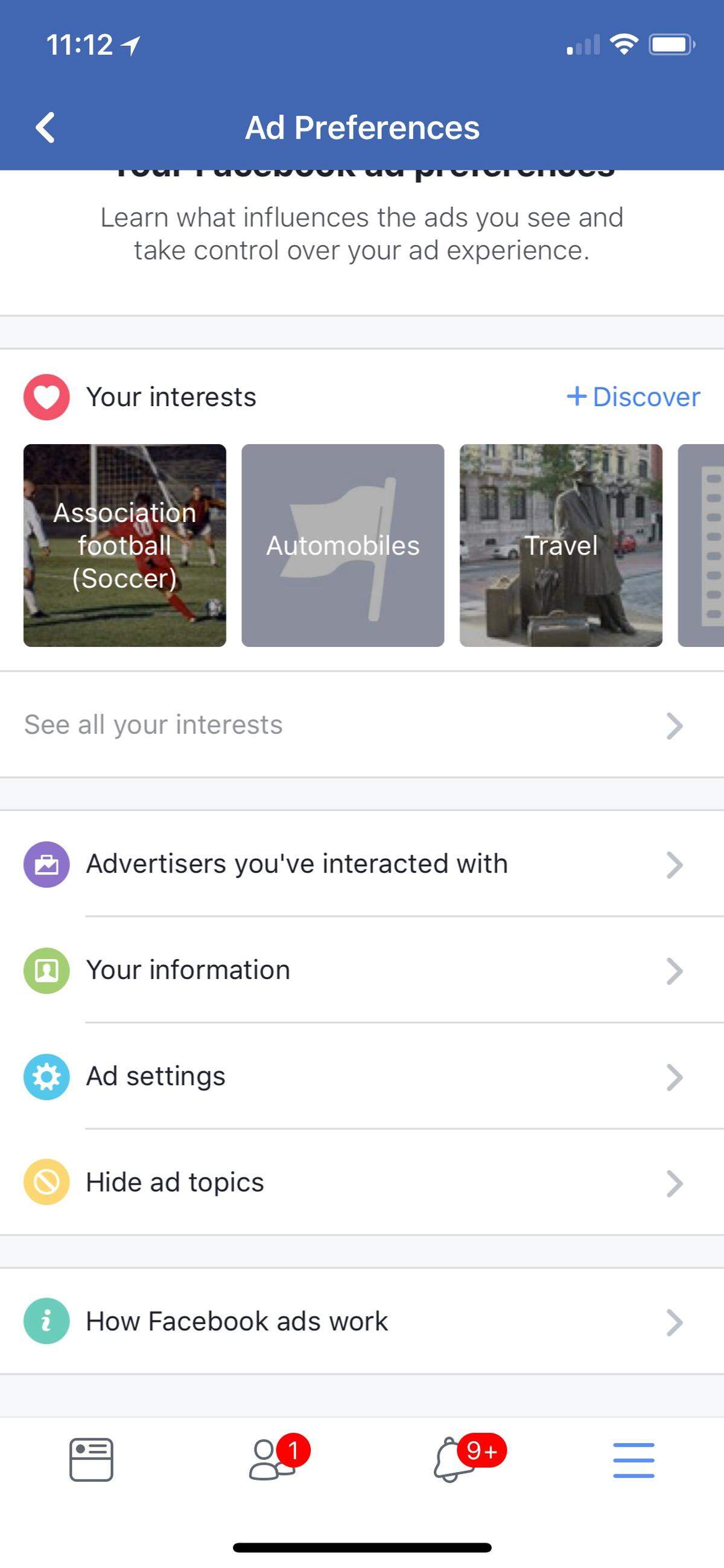
Under “Your Information,” you can see the profile information you’ve provided to Facebook, such as your relationship status, employer, education, etc. in the “About you” subsection.
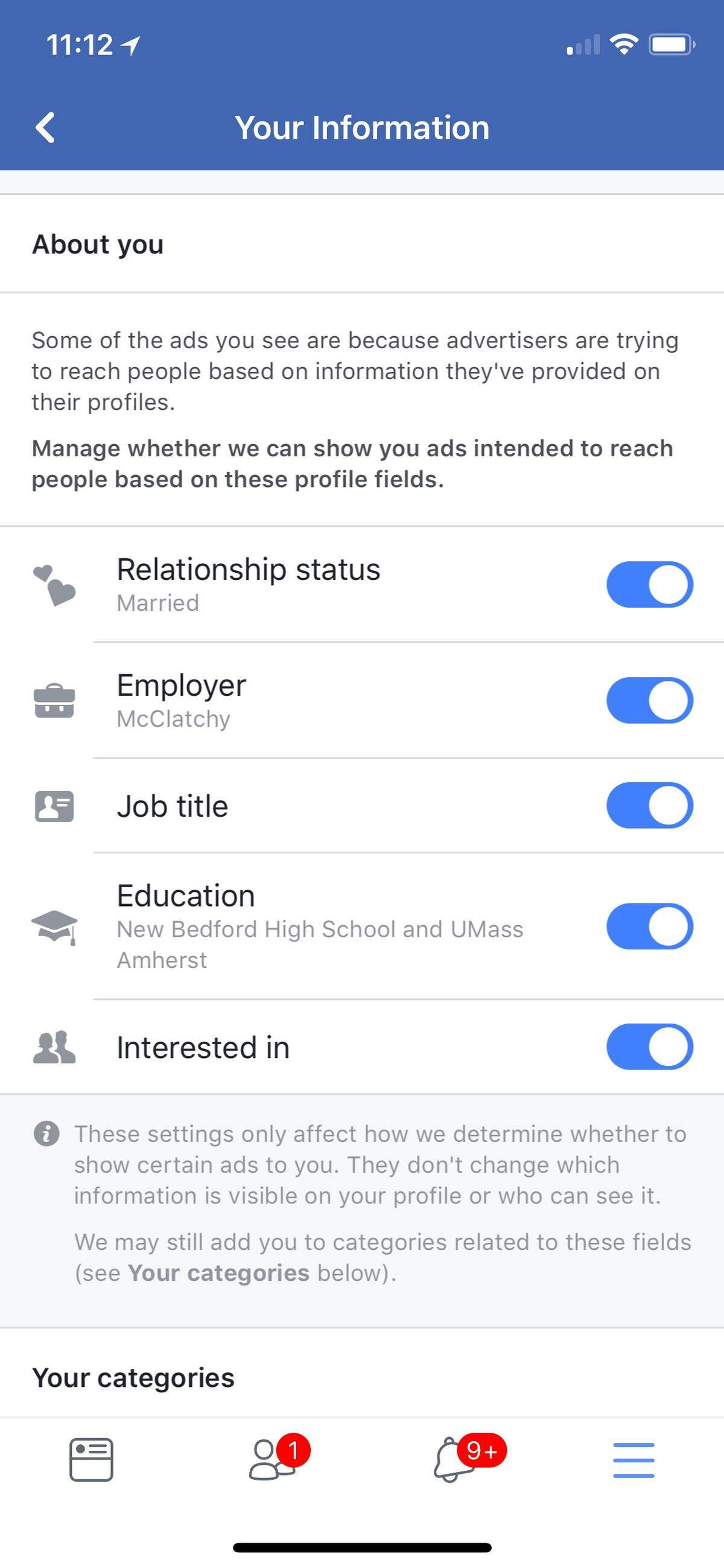
In the “Your categories” subsection, tap on “Review and Manage Your Categories” to see how Facebook has categorized you based on about a two dozen categories, including your political affiliation, the type of mobile device you use and your preferred web browser.
You can also see what ads you’ve interacted with on the platform and what Facebook thinks you’re interested in under the “Advertisers you’ve interacted with” subsection of “Ad Preferences.”
You can get a history of your activity on Facebook (what you’ve liked, apps you’ve used, anything you’ve searched for) by reviewing your “Activity Log” accessible by tapping on Settings and then tapping on “Activity Log.”
Downloading your Facebook data does not appear to be a feature in the iPhone app but can be done in the Safari or Chrome browser desktop version of Facebook.
On Android
To see what Facebook knows about you on your Android device tap on the three horizontal lines, often referred to as the hamburger icon, swipe all the way down and tap on “Settings & Privacy.” Go to “Account settings,” then swipe down and tap on “Ads.”
Under "Your information," you can see the profile information you’ve provided to Facebook, such as your relationship status, employer, education, etc. in the “About you subsection.”
In “Your categories” subsection, you’ll see how Facebook has categorized you. If you tap on one of the categories, Facebook will show you an example of an ad (created by an advertiser, not Facebook) it would show to a user in that category.
You can also see what ads you’ve interacted with on the platform and what Facebook thinks you’re interested in.
If you don’t wish to see ads based on a category or interest, answer the question at the bottom of your screen with the sad emoji. That category will disappear.

You can get a history of your activity on Facebook (what you’ve liked, apps you’ve used, anything you’ve searched for) by reviewing your “activity log” accessible by tapping on “Activity Log” under “Settings & Privacy.”
To download your Facebook data on your Android device, you’ll have to log in using your internet browser (not the Facebook app). Once you’ve logged in, tap on the hamburger icon on the right, tap on “Account Settings,” then “General.” A URL should pop up at the top of the screen. Delete the “m” after // and tap go on your keyboard. This will open the “General Account Settings” like you would see on a desktop. Tap on “Download a copy of your Facebook data.”
Cambridge Analytica, the analytics firm hired by President Trump’s campaign, collected data of more than 87 million Facebook users that revealed their political beliefs, interests and friends’ information via a quiz app developed by Cambridge University researcher Aleksandr Kogan.
Facebook CEO Mark Zuckerberg testified before the Senate’s Commerce and Judiciary committees on Tuesday that the data mining went beyond what was publicly available— some users’ private messages were also collected, the New York Times reported.
Gary Nielson contributed to this report.
This story was originally published April 11, 2018 at 4:28 PM with the headline "How to check Facebook privacy settings and delete account items."